Official manual · This is the official website

Shadowrocket Setup and rule configuration

Rule-based proxy client for all platforms. Start with an existing subscription and configure rule-based routing. iPhone / iPad: $2.99 one-time purchase on the App Store; Mac / Windows / Android / Linux: free.

Current version Loading · Free for Mac, Windows, Android and Linux; iPhone / iPad: $2.99 one-time on the App Store

First-time setup: Home connection steps →
Global RoutingSubscribeRule

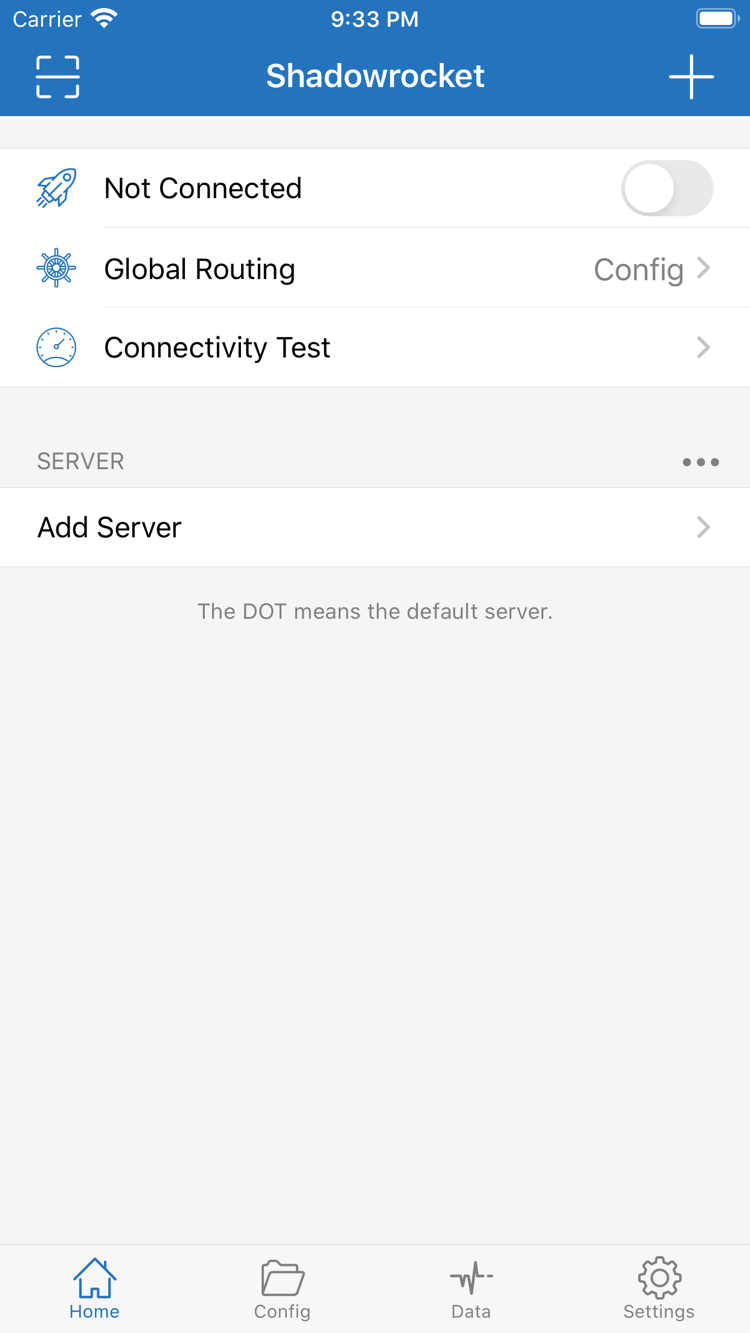
Home / Config / Connectivity Test

Three checks for your first connection

Check the server details first, choose how traffic is handled next, then verify the result. Existing configurations can remain in use. For a first-time setup, check each step as you go to keep import, rule and network issues separate.

Add a server or Subscribe

Get a subscription link from your service provider. In Config, open Subscribe to add an existing link, save and update it, then return to Home to check the server list. If you have details for a single server, use Add Server and fill in Host, Port and the required authentication fields according to Type.

After importing, check the name and protocol type. A QR code or clipboard is only an input method; it does not replace checking the fields. Do not post a complete link publicly if it contains access credentials. If an update fails, check that no spaces or line breaks were copied with the link.

Choose Global Routing

For rule-based routing, select Config mode and confirm which configuration file is active. Proxy mode routes traffic through the selected proxy; Direct mode connects directly. These are different handling modes, not speed settings.

A configuration file being present does not mean it is active. After selecting Config, also check that the policies in the rules point to an available server or policy group. For an initial test, avoid changing several settings at once: check whether the server connects, then see whether the rules match as expected.

Connect and verify

Select a server in Home and turn on the connection switch. Follow the system prompt to allow adding a VPN configuration. Once the connection status changes, run Connectivity Test, then open a page you need to use. The setup is complete when both the test and actual access work.

If access still fails, check your local network, server fields, Global Routing and Config rules in that order. Change one condition at a time and note the result. A successful latency test only shows that the test target is reachable; it does not confirm that all destination addresses are accessible.

Read the full guide →

Settings and traffic handling

Shadowrocket features

Servers determine where to connect, Global Routing determines how traffic is handled, and Rule in Config determines how traffic is routed. Understand these three layers separately, then use subscription updates, on-demand connections and diagnostics to make your setup easier to review.

Global Routing
Config  → Apply configuration rules
Proxy   → Route through the selected proxy
Direct  → Connect directly

Global Routing determines how traffic is handled overall. Open it from Home: Config mode routes traffic according to the current configuration's Rule; Proxy mode routes traffic through the selected proxy; Direct mode connects directly. For everyday domain- and network-based routing, prepare a configuration before selecting Config. You can temporarily switch modes to compare results while troubleshooting, but note the original setting and restore it after testing. Switching modes will not fix an incorrect Host, Port or authentication detail, nor will it automatically change servers. Check that the server is valid first, then decide whether the selected mode suits your needs.

Suggested reading order: understand Global Routing first, check Rule in the current configuration next, then manage automatic updates and on-demand connections. Subscription updates change the server list; editing the configuration changes traffic-handling rules. Neither replaces the other.

Read about features and settings →

2 ways to get the app · Choose by device

Shadowrocket for all platforms

iPhone / iPad: $2.99 one-time purchase on the App Store; Mac (Apple Silicon and Intel), Windows, Android and Linux: free. Desktop and Android installation packages are served from this site at /dl/shadowrocket/. The download guide covers file formats and first-launch permissions.

$2.99 one-time on the App Store; other platforms are free. The same purchase works on iPhone and iPad. When reinstalling or changing devices, look in Purchased under the original purchase account first. See the App Store page for system requirements.

On the product page, check the developer, icon and app ID, then confirm your account's storefront and the local-currency price. After the first launch, configure in this order: Home, Add Server, Global Routing. You do not need to change every Settings item first.

Mac

Free, with separate Apple Silicon and Intel versions. iPhone / iPad costs $2.99 one-time on the App Store; Windows, Android and Linux are also free. Check the chip or processor under About This Mac, then choose the matching dmg.

If you see “Unable to verify developer” on first launch, confirm the package came from this site, then follow the download guide to select “Open Anyway” under “Privacy & Security.” If you see a “damaged” warning, read the installation permission section before following the relevant steps.

Free, with a 64-bit exe. iPhone / iPad costs $2.99 one-time on the App Store; Mac, Android and Linux are also free. Save your work before installing, and keep a configuration backup when updating an existing installation.

If SmartScreen blocks the app, first confirm the file came from this site's download page, then select “More info” and “Run anyway.” Do not turn off system protection long-term for a single installation. After installing, follow the connection steps to check the server and rules.

Free, with an arm64 apk. iPhone / iPad costs $2.99 one-time on the App Store; Mac, Windows and Linux are also free. Check your device architecture and available storage before downloading, and keep your current configuration before updating.

When prompted for installation permission, allow “Install unknown apps” only for the browser or file manager you are using for this installation. You can revoke the permission afterward. If a download will not start in WeChat, open the download page in your system browser and continue from there.

Free, with deb, rpm and AppImage formats. iPhone / iPad costs $2.99 one-time on the App Store; Mac, Windows and Android are also free. Choose a format based on your distribution and package manager, then check the relevant commands.

Install a local deb package with apt, an rpm package with dnf, and add execute permission for AppImage. Do not copy file paths from other packages. Confirm the format, exact filename and launch method in the download guide before proceeding step by step.

View all platforms →

Verify before purchase and setup

Verify the app and understand the purchase

Shadowrocket is a closed-source commercial app. Identify it by checking the product page and download source, not by relying on a similar name or remembered icon. This section separates App Store purchases, client configuration and proxy services so you can check each item before paying or changing devices.

  • Developer: Shadow Launch Technology Limited
  • App ID: 932747118
  • iPhone / iPad: $2.99 one-time · Other platforms: free

Check three details on the App Store

Before getting the app on iPhone / iPad, check that its name is Shadowrocket, then verify the developer, Shadow Launch Technology Limited, the official icon and app ID 932747118 in the product link. Search results with similar names are no substitute for these checks; a free listing with the same name is not the paid product described here.

Compare the icon with the official icon on this page, but always open the correct product page to verify developer information. Do not decide based only on a search-result thumbnail. For computers and Android, use the download links in this site's guide. Installation packages are at /dl/shadowrocket/ on this site; an App Store purchase record is not the source for a desktop installation package.

App Store availability depends on account region

The app is currently unavailable on the mainland China App Store. If you cannot find it, check the region of the account used for “Media & Purchases” and whether the product page is available in that storefront. Device language and account region are separate settings. For region changes, review the requirements under your account's “Country/Region” settings, including balance, subscriptions and payment information.

One unsuccessful search does not mean the app does not exist or that your device is incompatible. Check the App Store page for iPhone / iPad system requirements. The displayed currency and final amount are also determined by the product page. The download guide's App Store section covers storefront visibility, purchase confirmation and download progress.

App Store and account region details →

One-time purchase and restoring purchases

iPhone / iPad costs $2.99 one-time on the App Store; Mac, Windows, Android and Linux are free. The purchase works on both iPhone and iPad. When changing devices or reinstalling, sign in with the original purchase account, find Shadowrocket in Purchased and download it again. If the page still shows a purchase button, check the account and purchase history before paying again.

Restoring the app and restoring its configuration are separate tasks. Reinstalling does not confirm that subscriptions, servers and local configuration have all been restored. Before connecting, check the list in Home, the active Config and Global Routing. If using saved iCloud content, wait for sync to finish and check each item, especially policy names and server references.

Steps to restore a purchase →

Manage the client and proxy service separately

A client purchase does not include a proxy service. Shadowrocket provides proxy connections and rule configuration; it does not include ready-to-use server details. This site does not provide, sell or recommend nodes or subscriptions. The instructions below assume that you already have your own subscription or server details. Get subscription links from your service provider and check service validity and usage with that service.

If the client opens but a server is unavailable, check Host, Port, authentication details and the subscription update result first. Reinstalling or purchasing the app again will not fix an expired service, changed address or network issue on the server side. When reporting an issue, note the error, current network and test steps. Hide passwords and credentials in links before sharing the necessary details.

Recheck the active configuration after updating

Check for updates on iPhone / iPad through the App Store. For Mac, Windows, Android and Linux, get the latest installation package from this site's download guide. Keep a working configuration and any individually added server details before updating. Afterward, test the existing connection before changing new settings. If the interface changes, use the English item names shown in the app instead of relying on fixed screenshot positions.

Support for multiple protocols does not mean their fields are interchangeable. When your service provider gives you VMess, VLESS, Trojan, Hysteria2 or WireGuard details, choose the corresponding Type and check its authentication and transport parameters. Changing protocols is not a general troubleshooting method. First confirm that the existing details are complete and that configuration references are correct.
Installation and import guides

Shadowrocket how-to articles

Choose an article based on the task: for an existing link, see Subscribe; for Linux, choose an installation format; for Mac and Windows, check system and installation prompts. Each article covers a focused set of steps for easier reference.

Browse all articles →